Media Location Tool
Media A digital file containing an image, text, spreadsheet, video, audio, or any other format. Media can be attached to various records in Clooz as digital representations of source document content, or as Information Records (as photographs, maps, videos, or audio independent of a specific source document). files you attach to records in Clooz are not copied or embedded in the Clooz database. Rather, Clooz tracks where the file is located on your computer. When moving your entire Clooz database and attached media files to a new computer or even just reorganizing files on your current computer, the links in the Clooz database pointing to file locations become invalid. That is, the link no longer points to the correct file location. The Media Location Tool (located in the Home tab page, Tools area) can be used to identify and fix broken file links.
Identifying Broken File Links
 The Media Location Tool displays a tree structure of all the folders which have media items linked to Clooz records. When a file is missing, a small red icon appears by the name.
More information can be displayed about any of the files by selecting the file, and then pressing the Media Info button (or similar command in the context (right-click) menu). A form then appears to give you more information on what the media file is linked to.
The tool provides the option to show all media files in use, or show only missing files. Click the radio button for the display option you want.
Click the Expand All or Collapse All buttons to expand or collapse all of the folders listed. If you want to always open the tool in expanded mode, click the check box provided.
The list of files is generated the first time the tool is displayed. To update the list on subsequent uses of the tool, click the Re-test File Locations button at the bottom of the tool.
Fixing Broken File Links
There are several ways to fix broken file links:
- Search for all missing files
- Manually locate a file
The search function finds files that have been moved. The manual method is required to locate files that have been renamed.
To search for missing files, do the following:
-
 If you want the search to include all of the sub-folders contained within the folder you designate, check the check box provided. Otherwise, only the folder you designate will be searched.
-
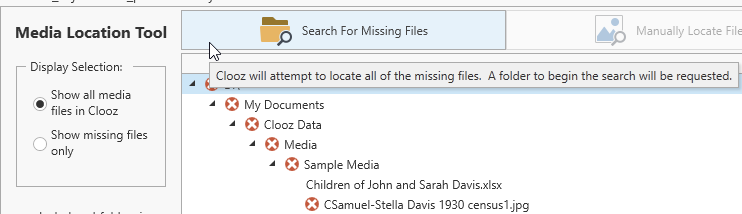 Click on the Search For Missing Files button.
-
 Select the folder to search from the folder browser window. If the Include subfolders check box was selected, the search will continue through all of its sub-folders.
-
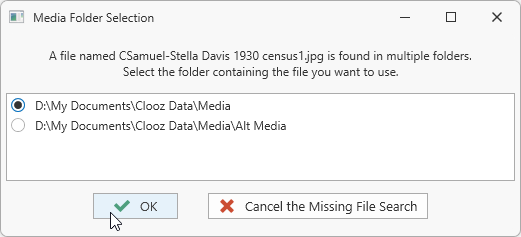 The search now begins. If Clooz finds more than one file with the same name within your starting folder structure, you will be asked which one you want to use.
-
 When the search is completed the results are displayed and the media list is updated.
To perform a manual search, do the following:
-
Select the missing file in the list.
-
 Click the Manually Locate File button, or select Browse to File Location from the context menu (right-click missing file in list).
-
Locate the correct file in the file selection dialog and then click OK.
If you determine that the missing file is lost entirely, you can remove it from the database by selecting it in the list and click the Remove Media button (or similar command in the context menu)
Regenerating Thumbnail Images
You can user the Media Location Tool to regenerate the thumbnail images Clooz retains for each media file. This might be useful if you have modified the media files (external to Clooz) and want Clooz's thumbnail to represent the new content.
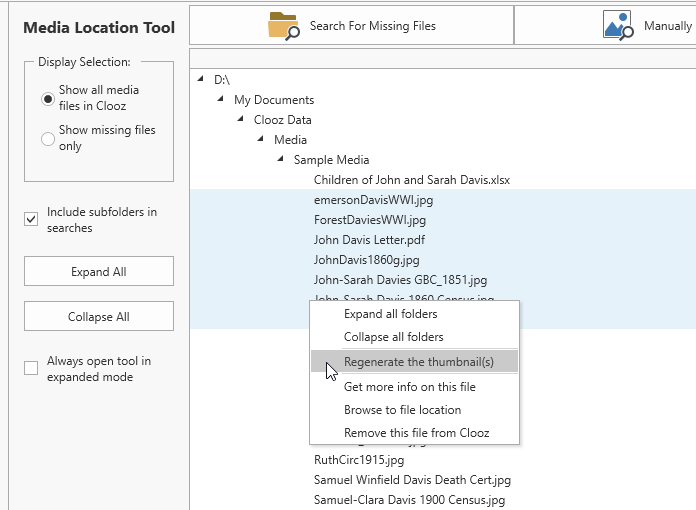 To replace existing thumbnails with newly generated ones, select one or more files in the media list and right-click, selecting Regenerate theThumbnail(s) in the context menu. Folders can be selected, in which case all media files in the folder are updated with new thumbnails. If a folders are selected, Clooz will ask if you want to also include the media files in any sub-folders.
When file paths in the Media Panel of the Information Record Information Records in Clooz hold the content information coming from a document or another source. The Information Record differs from a Source record which contains most of the citation information that describes the document or the Repository record that is referring to the facility or an online service where the document was found. or Source A Source record in Clooz should be viewed as the higher-level component of one or more source citations. Source citation details are usually included in the citing Information Record. editors are edited, thumbnails are regenerated automatically.